
Epicor Kinetic ERP – Solution Installation Guide (Solution Workbench)
Purpose
This guide explains how to install an Epicor Kinetic ERP Solution package (.CAB) into an Epicor environment using Solution Workbench.
It covers:
Pre-requisites
Best practice approach (test → pilot → prod)
Installation steps
Validation checks
Common issues
1) Pre-Requisites
Before installing, confirm the following:
Access & permissions
You must have:
An Epicor user account with rights to:
Solution Workbench
System Agent / Task Agent
Company Maintenance (if applicable)
Security Manager (if solution contains security changes)
Environment readiness
Confirm:
You are installing into the correct environment (DEV / TEST / PROD).
The environment is at the correct Epicor version matching the CAB.
Solution verification
Solution Version: 4.2.400.0
Application Version: 4.2.400.0
These should match (or be compatible).
Backup / rollback plan
Before PROD installation:
Confirm database backup exists
Confirm application server snapshot (if your infra supports it)
Confirm a rollback plan exists (especially if data updates are included)
2) Recommended Deployment Approach
Use a controlled deployment flow:
DEV: install and validate
TEST/UAT: user testing + signoff
PROD: install out-of-hours + smoke test
3) Installation Steps (Solution Workbench)
Step 1 — Open Solution Workbench
In Epicor Kinetic:
Navigate to System Management → Solution Workbench
Open Install Solution
Step 2 — Select the Solution File
Click:
Solution File
Browse and select the .CAB package
Example:
TaskAgentMigrator_Tools.CAB
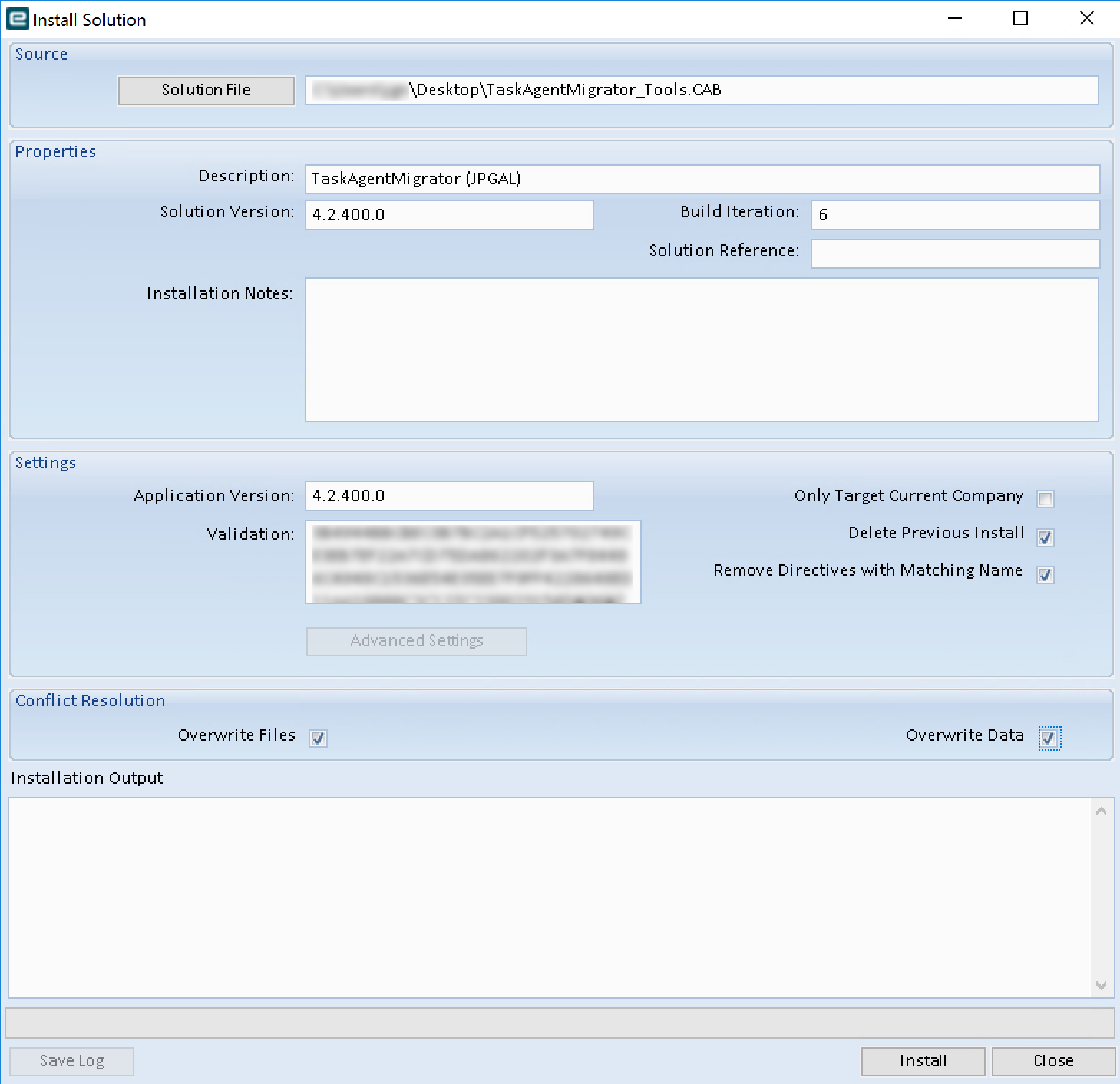
Step 3 — Review Solution Properties
Verify:
Description (often contains version/date/time)
Solution Version
Build Iteration
Solution Reference (may be blank)
Confirm:
Solution Version matches target Epicor version (or the intended patch level).
Step 4 — Review Installation Settings
Application Version
This should auto-populate.
Confirm it matches your environment version.
Only Target Current Company
Unchecked (default) = installs solution for all companies / global components.
Checked = installs solution only into the currently selected company.
✅ Use this ONLY if:
The solution is explicitly company-specific (rare).
Step 5 — Set Installation Options
These are the most important ones:
Delete Previous Install
Removes the previous installed instance of this solution.
Prevents conflicts when re-installing updated CABs.
✅ Recommended: Checked
Remove Directives with Matching Name
Deletes BPM directives with the same name as the ones in the CAB before installing.
✅ Recommended: Checked
(Especially in iterative development cycles.)
Step 6 — Conflict Resolution Options
Overwrite Files
If solution includes client/server files (rare in modern Kinetic solutions):
Allows replacing existing files.
⚠️ Only enable if you are confident the CAB includes the intended file versions.
Overwrite Data
If solution includes data updates (BPMs, UDCodes, BAQs, etc.):
Allows replacing existing data objects.
✅ Recommended: Checked
(Otherwise installs can silently fail or partially apply.)
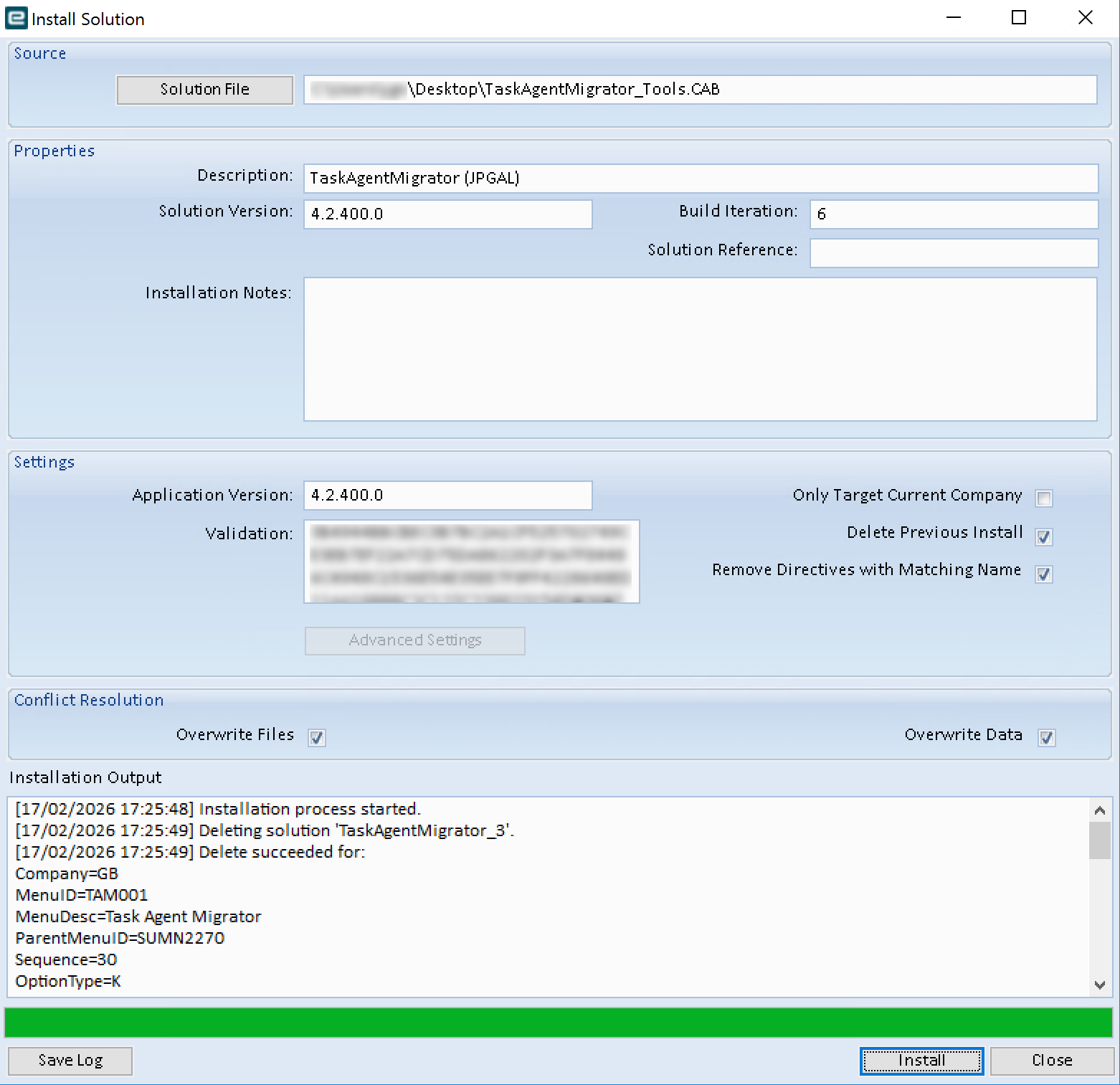
Step 7 — Install the Solution
Click:
Install
Monitor the Installation Output panel for:
Success messages
Warnings
Errors
4) Post-Install Validation Checklist
After installation, validate the following depending on what the solution contains:
General
Solution appears in Solution Workbench → Installed Solutions
No errors in installation output log
If the solution includes BPMs
Open Business Process Management → BPM Designer
Confirm directives exist and are enabled
Confirm expected methods/events are updated
If the solution includes BAQs / dashboards
Confirm BAQs exist and compile
Confirm dashboards deploy and load successfully
If the solution includes Task Agent changes
Restart Task Agent if required
Confirm scheduled tasks still run
Check Task Agent logs for failures
Functional smoke test
Run the business process impacted by the solution:
Example: payment posting
Example: invoice approval
Example: bank file generation
Example: integration polling
5) Common Issues & Fixes
❌ Version mismatch
Symptom: install fails due to version check
Fix: confirm CAB was built for your patch level
❌ “Object already exists” errors
Cause: overwrite options not enabled
Fix: re-run install with:
Overwrite Data = checked
Delete Previous Install = checked
❌ BPM directives not behaving as expected
Cause: directive exists but disabled, or method mismatch
Fix:
confirm directive is enabled
confirm it’s on the correct BO + method
confirm directive is in correct company scope
❌ Changes don’t appear in UI
Cause: client caching
Fix:
clear browser cache
restart appserver (sometimes required)
refresh Kinetic layers if relevant
6) Logging & Audit
After installation:
Click Save Log
Store the install log in your change control / ticket
Recommended log naming:
<ENV>_<SolutionName>_<Version>_<YYYYMMDD>.txt
Example:
PROD_TaskAgentMigrator_Tools_4.2.400.0_20260213.txt
7) Production Best Practices
For PROD installs:
Run out-of-hours where possible
Ensure no users are posting transactions during install
Take DB backup first
Perform immediate smoke test
Keep install log + CAB stored for rollback traceability