Summary
KNxSF - Integration Summary
Purpose and Objectives
This document collection provides a functional and technical outline for the integration.
Project Summary
This project delivers data synchronisation between Kinetic and Salesforce, equipping users in both systems with up-to-date account, contact and related information to reduce duplicate work and streamline daily operations.
KNxSF - Main Process Summary
Kinetic Change Tracking
Use IntQue Directives on all tables/fields that should trigger a Sync Action.
IntQue Directives
Customer
ShipTo
Part
Order & Order Lines
Invoices and Invoice Lines
Contacts
Pseudo-Realtime Process
This process runs every 15 minutes; it aims to track and sync changes made in the period between process runs.
1. Kinetic Change Tracking
Using the IntQue records, get all changes since the last process in Kinetic and synchronise these to Salesforce.
2. Salesforce Change Tracking
Get changes since the last process where the Sync Status is 'Ready' in Salesforce using REST queries and create an IntQue record with the most recent changes
Using the IntQue records, get all the unprocessed changes incoming from Salesforce and perform the transactions in Kinetic.
Daily Bulk Process
This process runs daily. It aims to load any unlinked records that have been missed and also functions as a bulk data load.
1. Bulk Data Clean and Load
Find all unlinked active records and send them to Salesforce (Note: this does not create an IntQue record it sends the table data).
2. Purge Old IntQue Records
Purge IntQue records that are a configurable number of days old.
Misc. Notes
Error Handling
The integration holds record errors in the IntQue table.
Logging
Process logging is written to the system monitor and the environment file logging location.
Company Processing
There is a separate process for each Kinetic company.
KNxSF Integration Top Level Details
Details on how the KNxSF integration functions
Integration Process Overview
The integration consists of outbound and inbound processes, coordinated by a central heartbeat function.
Outbound Integration Process
The outbound integration runs on two branches:
Queue
Bulk
Queue Processing (Normal Operation)
The system scans Kinetic for rows that have been updated.
It focuses on specific fields in specific tables.
When a monitored field changes:
A queue item is created and added to the main queue.
An associated IM (Integration Management) row is created, storing:
Additional context about the record
The direction of the integration
Downstream integration functions:
Check the queue for records relevant to them
Translate Kinetic data into Salesforce data structures
Upload the transformed data to Salesforce
Bulk Processing
Bulk mode bypasses the Queue tables entirely
All eligible records are uploaded to Salesforce in a single operation
Inbound Integration Process
The inbound process operates similarly to outbound Bulk, with some key differences:
Salesforce records marked as “ready” are downloaded
Each record is:
Converted into a Kinetic-compatible data structure
Stored in the IM table
Marked as inbound
Added to the queue for processing
Important limitation
Inbound integration can only update records that already exist in Kinetic.
Any Salesforce records that do not already exist in Kinetic are ignored.
Heartbeat & Error Management
At the centre of the integration is the heartbeat function.
All other connection errors are suppressed to avoid repeated alerts
The heartbeat:
Checks all connection statuses in a single operation
Detects failures across any integration points
Stops all integration processes if a failure is detected
This prevents mass error emails being generated during widespread connection issues.
Integration Object Mapping
Below is a high-level mapping of Kinetic tables to Salesforce objects.
A more detailed mapping table is available if required.
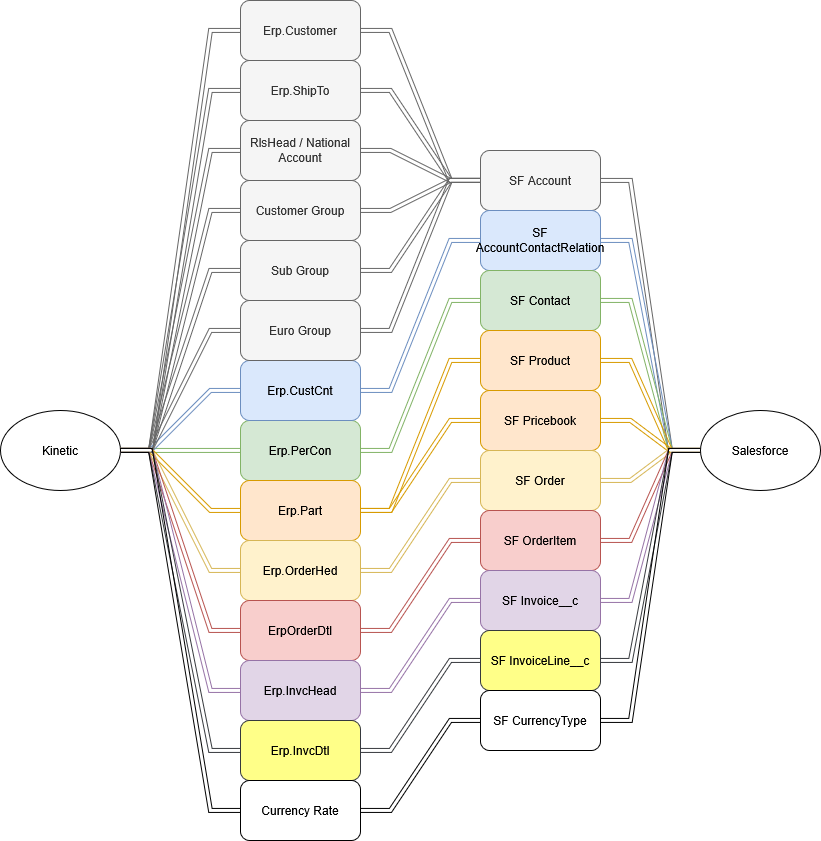
Object Mapping Table
Epicor (Kinetic) Object / Table | Salesforce Object | Direction |
Erp.Customer (Bill-To customers, CustomerType = "CUS") + Customer_UD | Account | Epicor → Salesforce |
Erp.Customer (Prospects, CustomerType = "PRO") + Customer_UD | Account | Salesforce → Epicor |
Erp.Customer (Existing customers) + Customer_UD | Account | Salesforce → Epicor |
Erp.ShipTo | Account | Epicor → Salesforce |
Erp.ShipTo | Account | Salesforce → Epicor |
Erp.PerCon | Contact | Epicor → Salesforce |
Erp.PerCon | Contact | Salesforce → Epicor |
Erp.CustCnt (Customer–Contact relationship & flags) | AccountContactRelation | Epicor → Salesforce |
Erp.CustCnt | AccountContactRelation | Salesforce → Epicor |
RlsHead / National Account structure (with Customer lookups) | Account | Epicor → Salesforce |
Customer Group / Buying Group | Account | Epicor → Salesforce |
Euro Group / Spend Group (UD grouping records) | Account | Epicor → Salesforce |
Sub Group (UD grouping records) | Account | Epicor → Salesforce |
Erp.Part (Product master) | Product2 | Epicor → Salesforce |
Erp.Part / Pricing inputs | PricebookEntry | Epicor → Salesforce |
Erp.OrderHed (Order header) | Order | Epicor → Salesforce |
Erp.OrderDtl (Order line) | OrderItem | Epicor → Salesforce |
Erp.InvcHead (Invoice header) | Invoice__c | Epicor → Salesforce |
Erp.InvcDtl (Invoice line) | InvoiceLine__c | Epicor → Salesforce |
Currency rate / master inputs | CurrencyType | Epicor → Salesforce |