Opening Balance File Export Guide
Purpose
This guide explains how to create a FEC GL Opening Balance file.
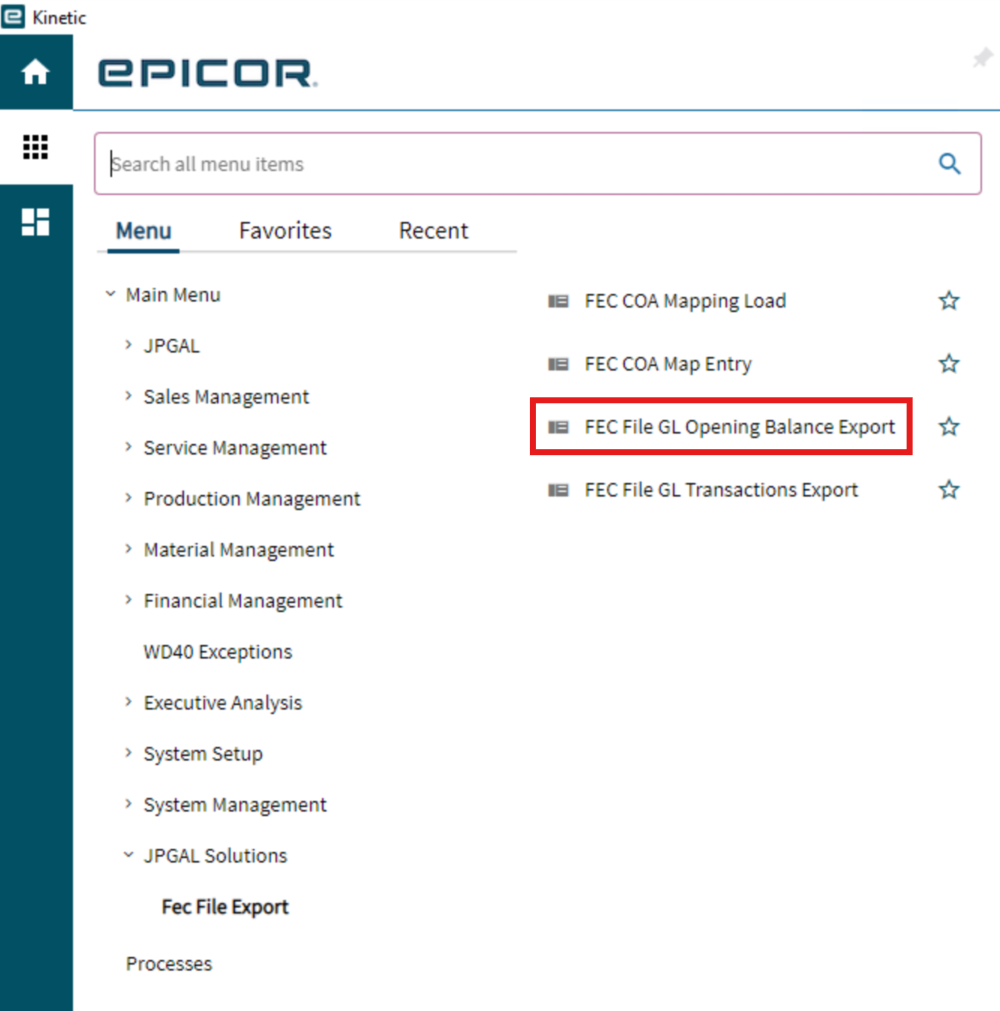
Step 1 – Open FEC File GL Opening Balance Export
In Epicor, open: FEC File GL Opening Balance Export
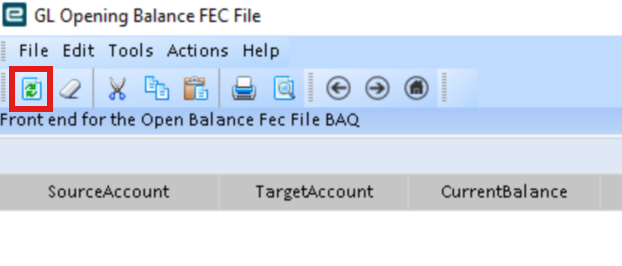
Step 2 – Refresh the Dashboard
Click Refresh
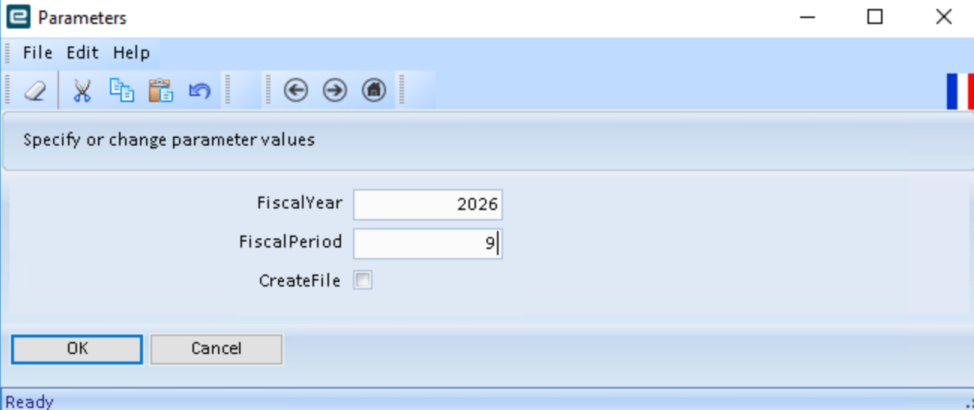
Step 3 – Add the Fiscal Year and Period
Use the Epicor fiscal year and period required for the export.
Step 4 – Run and Check the Results
Click OK and review the results for any mapping errors.
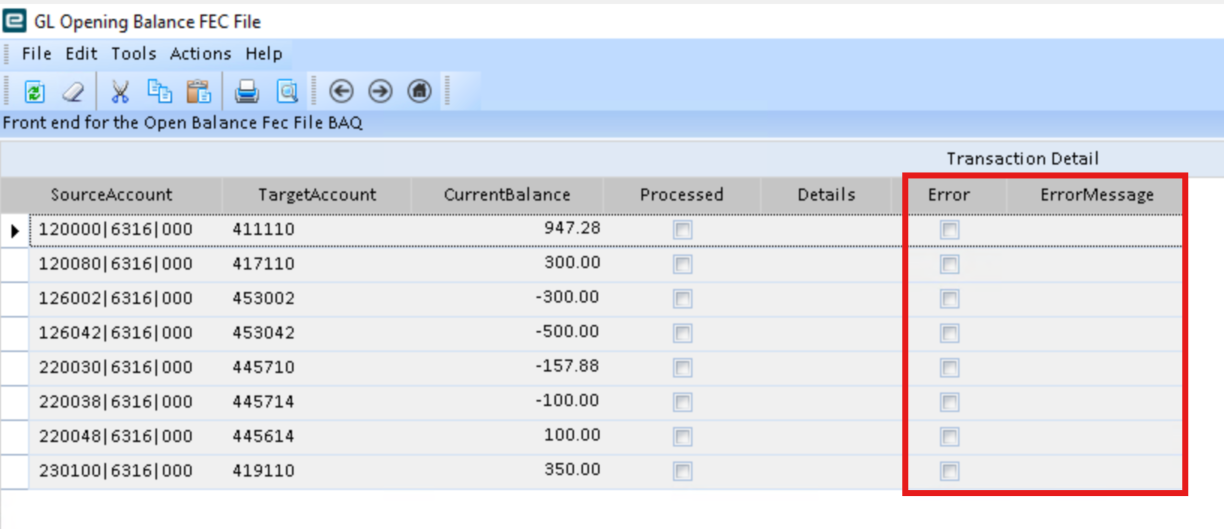
In particular, check for accounts showing:
*** No Map ***
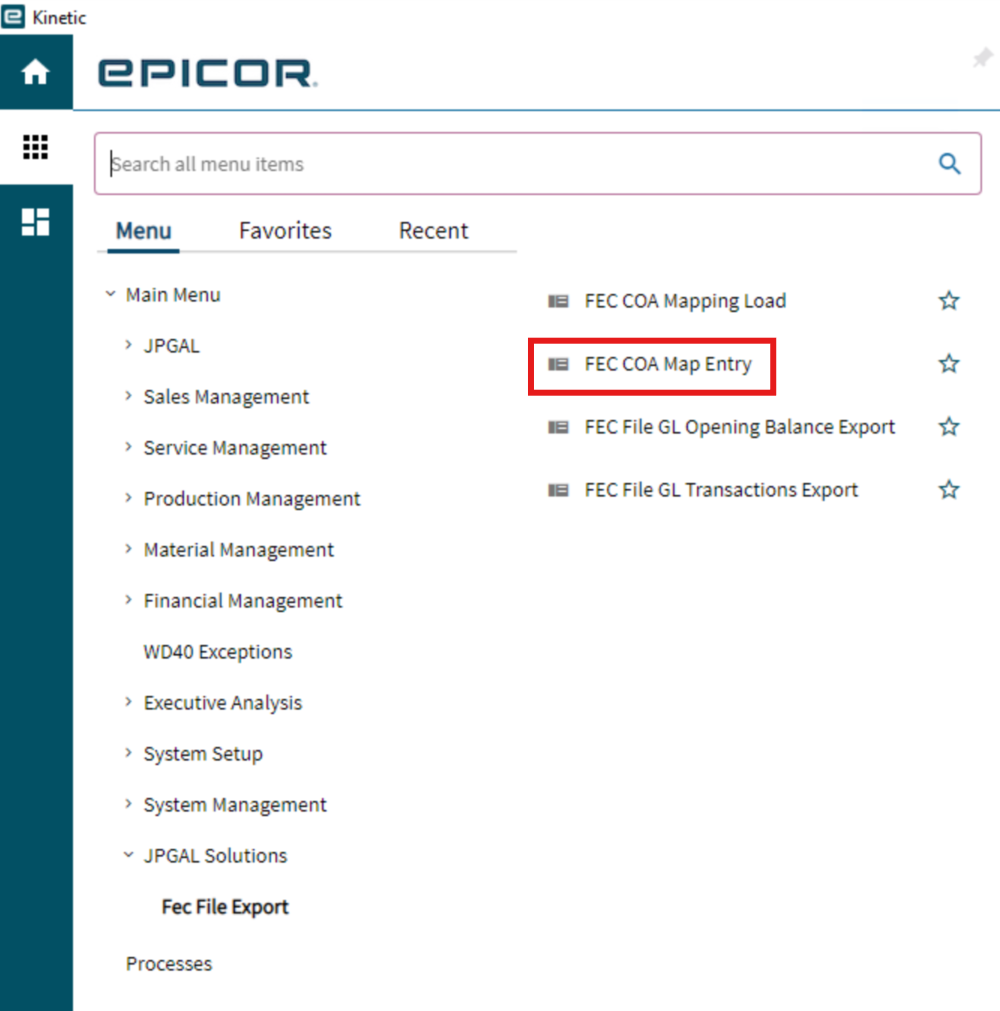
If there are missing mappings, open FEC COA Map Entry and add/correct the appropriate mapping.
Step 5 – Rerun and Select Create File
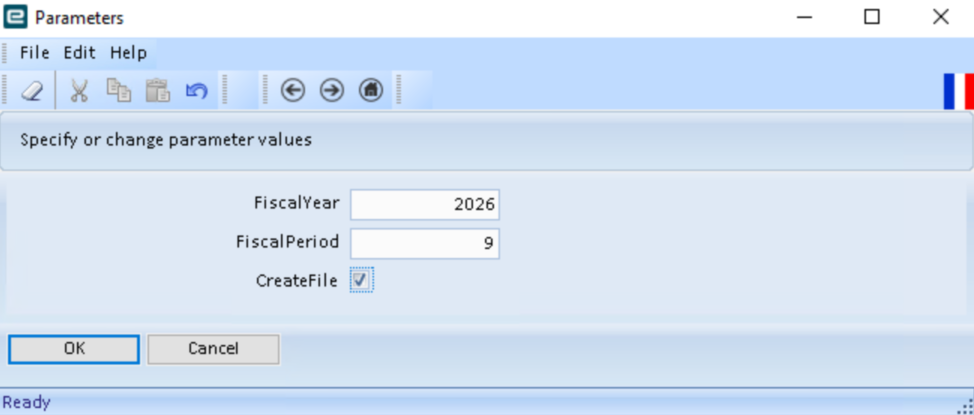
Once the results have been checked and any required mapping errors have been corrected, refresh the dashboard and tick Create File.
Click OK to generate the FEC GL Opening Balance file.
Step 6 – Find Output
Files are generated in:
\\<Server>\EpicorData\Reports\<UserID>\
Opening Balance File Format: <SIREN>FEC<YYYYMMDD>_OPENBAL.txt
Example: 383124328FEC20260930_OPENBAL.txt

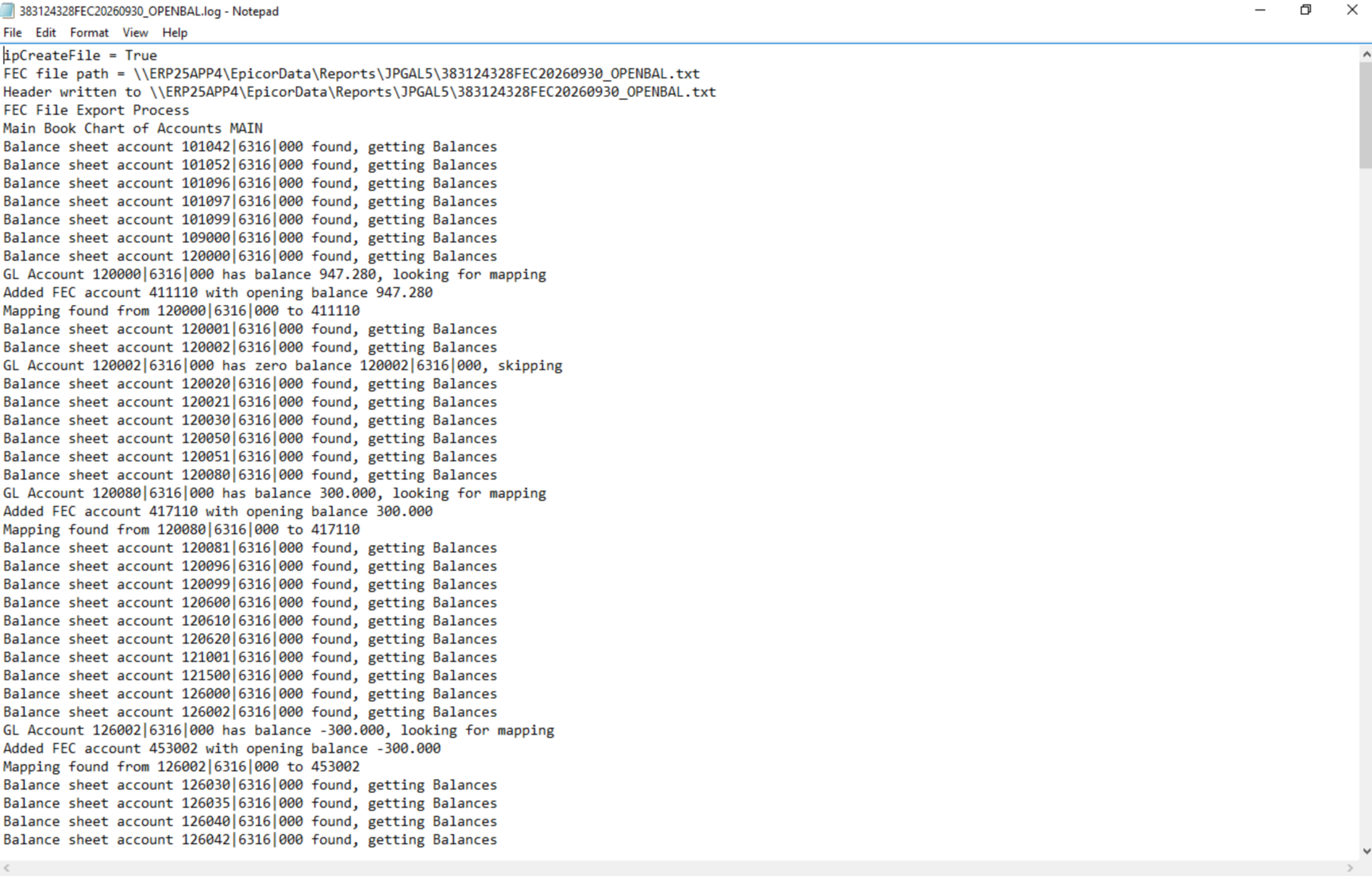
Log File Format: <SIREN>FEC<YYYYMMDD>_OPENBAL.log
Example: 383124328FEC20260930_OPENBAL.log