
Task Agent Migrator (Epicor Kinetic ERP) — User Guide
Overview
The Task Agent Migrator is a JPGAL Epicor Kinetic function that allows you to:
Export Task Agent configuration from one Epicor environment
Import Task Agent configuration into another Epicor environment
This includes:
System Agents
Process Sets
Tasks
Task Parameters
It is designed for use when migrating scheduled processes between environments (e.g., Pilot → Live, Test → Live, Live → Sandbox, etc.).
Before you start
Install the solution included in your order confirmation.
Use the guide below for installation steps
📄 Epicor Kinetic ERP – Solution Installation Guide (Solution Workbench)
What you need
Before running the migrator, make sure you have:
Access to Epicor Kinetic ERP
Permission to run Scheduled Functions
Access to a valid server file path where JSON files can be written/read
The target environment is ready to receive process sets and agents
What this tool exports/imports
The migrator works with the following Epicor objects, including:
SysTask
SysTaskParam
ProcessSet
ProcessTask
SysAgent
(As defined in the function library references.)
Where to find it in Kinetic
Open:
Epicor Kinetic ERP → System Management →Solution Management → Task Agent Migrator
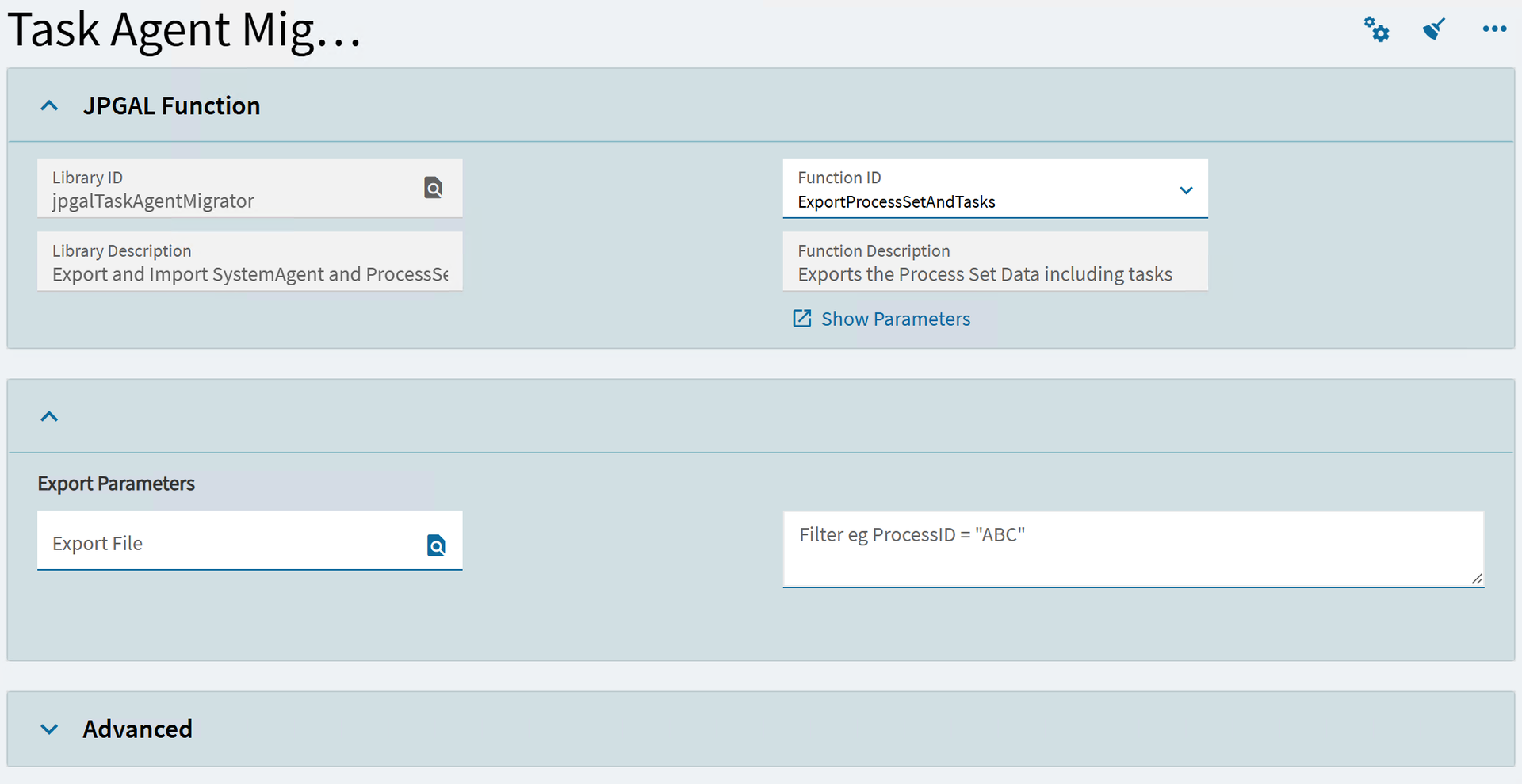
The screen caption is:
Task Agent Migrator
How to use the Task Agent Migrator
Step 1 — Select the Function ID
In the JPGAL Function panel, locate:
Function ID
What the Function ID does
The Function ID controls what action you are running.
The Task Agent Migrator library includes functions such as:
Export functions
ExportSysAgentData
ExportProcessSetAndTasks
Import functions
ImportSysAgentData
ImportProcessSetAndTasks
Step 2 — Run an Export
When to use export
Use export when you want to capture configuration from a source environment.
Examples:
Export Task Agent config from Pilot
Export Task Agent config from Test
Export Process Sets before refreshing a database
Export: Process Sets and Tasks
Function
Select:
ExportProcessSetAndTasks
What it does
Exports Process Set data including:
Process Sets
Tasks within Process Sets
Task Parameters
Output
A JSON file is written to the path you specify.
Export: System Agent Data
Function
Select:
ExportSysAgentData
What it does
Exports agent configuration including:
System Agents
Related settings required for scheduling
Output
A JSON file is written to the path you specify.
Step 3 — Run an Import
When to use import
Use import when you want to apply configuration into a target environment.
Examples:
Import Task Agent config into Live
Rebuild Process Sets after a database refresh
Copy scheduling config from Pilot → Live
Import: Process Sets and Tasks
Function
Select:
ImportProcessSetAndTasks
Required inputs
This function expects the following parameters:
JSON file full path
Update if exists
Stop on first error
What it does
The import process:
Adds new process sets, tasks, and parameters
Updates existing ones (if enabled)
Creates new records if key reference fields change
Note: Changes to key reference fields will cause a new record to be created rather than updated.
Import: System Agent Data
Function
Select:
ImportSysAgentData
What it does
Imports System Agent configuration into the environment.
File path rules (important)
When importing or exporting, the function validates the file path before continuing.
If the file path is invalid, the process stops and logs an error similar to:
FileName invalid: <reason>
This means:
The folder does not exist
The path is not accessible by the Epicor app server
The filename is not valid
Logs and monitoring
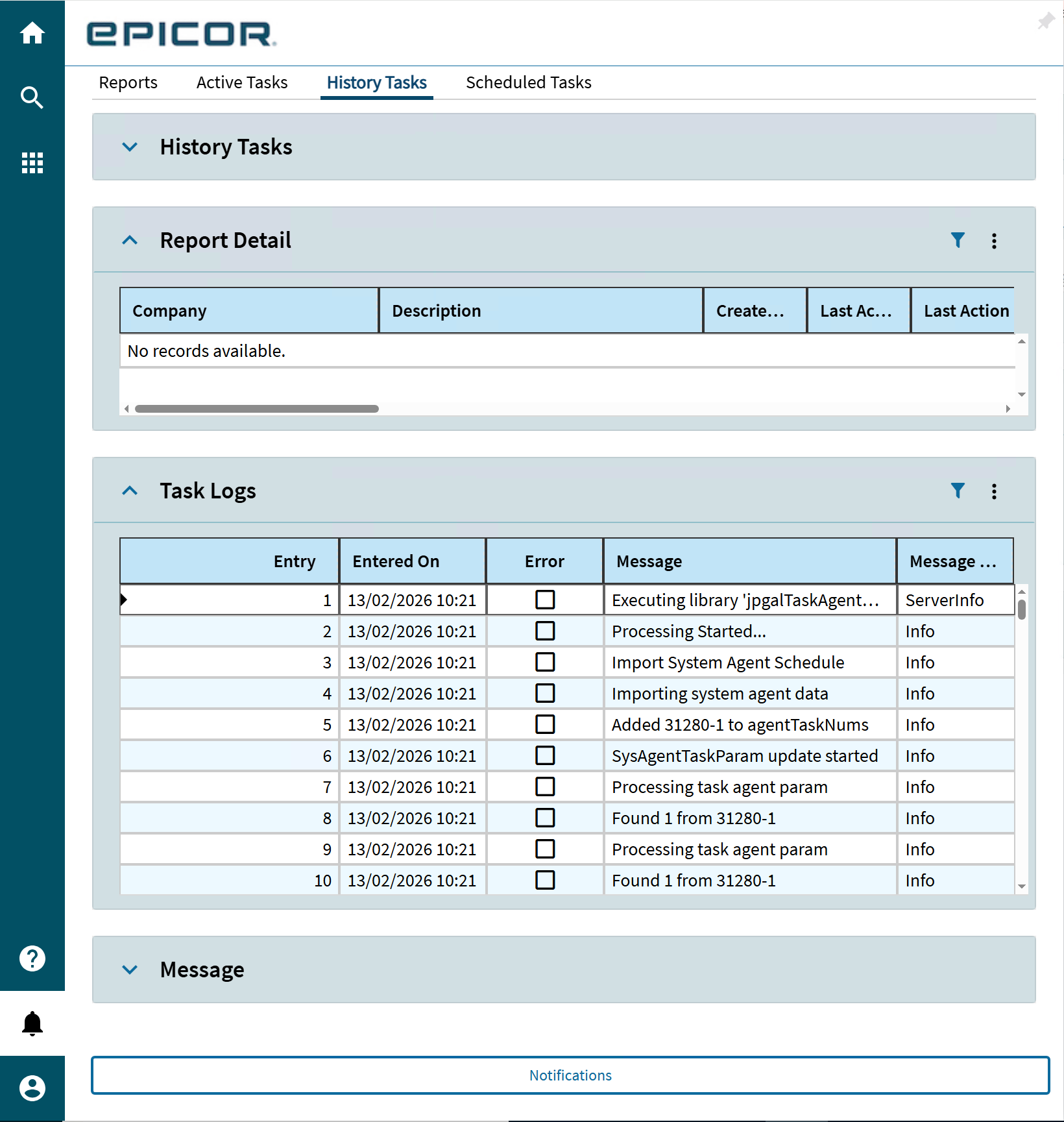
Each run writes messages into the Epicor task log.
You will see entries like:
“Importing process set data”
“Processing Finished…”
This makes it easy to confirm what happened without guessing.
Recommended migration workflow
Standard “Pilot → Live” migration
In Pilot, run:
ExportSysAgentData
ExportProcessSetAndTasks
Copy the generated JSON files to a safe location accessible by Live.
In Live, run:
ImportSysAgentData
ImportProcessSetAndTasks
Validate:
Agents exist
Process Sets exist
Scheduled tasks run successfully
Troubleshooting
“FileName invalid”
This means the JSON path failed validation.
Fix by checking:
The path exists on the Epicor server
Epicor has permission to read/write there
You included a full filename (not just a folder)
“Import completed but tasks don’t run”
This usually means:
The agent exists but is not enabled
The schedule exists but the agent is not assigned correctly
The Process Set imported but requires manual verification
Recommended check:
Open System Agent Maintenance
Confirm the agent is enabled and running
“Duplicate process sets/tasks created”
This can happen if:
Key reference fields differ between environments
You ran import with key values changed
Fix:
Review imported records
Delete unwanted duplicates manually (if required)
Re-run import with corrected source data
FAQ
Does this migrate schedules?
It migrates the process sets/tasks and agent data, which is the core of scheduling configuration. If your environment has additional schedule rules, validate them after import.
Can I run this multiple times?
Yes — but use Update if exists carefully to avoid duplicates.
Is it safe to run in Live?
Yes, but only if:
You have tested the JSON export/import flow in Pilot first
You are confident in the source data
You have a rollback plan